
As with previous versions, Windows Server 2019 has a native Disk Management tool. It is able to create, delete, and format partitions. It also has the ability to shrink and extend partitions without losing data. When the C drive or partitions for Exchange, databases, etc., are getting full, many people want to extend these partitions without starting over. However, many server administrators report that they cannot extend a volume in Windows Server 2019 via Disk Management, because the "Extend Volume" option is grayed out. This article explains why Disk Management is unable to extend a volume in Windows Server 2019 and how to solve this problem easily.
Why You Cannot Extend Volumes in Server 2019 Disk Management
There are 4 common reasons why you cannot extend a volume in Windows Server 2019 with Disk Management. Each reason is explained in detail below. Press Windows + X keys together to open your own Disk Management.
1. No Adjacent Unallocated Space on the Right
The size of a physical hard disk is fixed. Before extending a partition, there must be unallocated space on the same disk. To get such disk space, you may either delete or shrink a partition. You won't lose data by shrinking a partition in Server 2019 Disk Management (in most cases), so it is much better than deleting. The problem is, you still cannot extend a Server 2019 partition after shrinking another one via Disk Management. As shown in the screenshot, it is not possible to extend the C or E drive after shrinking the D drive.
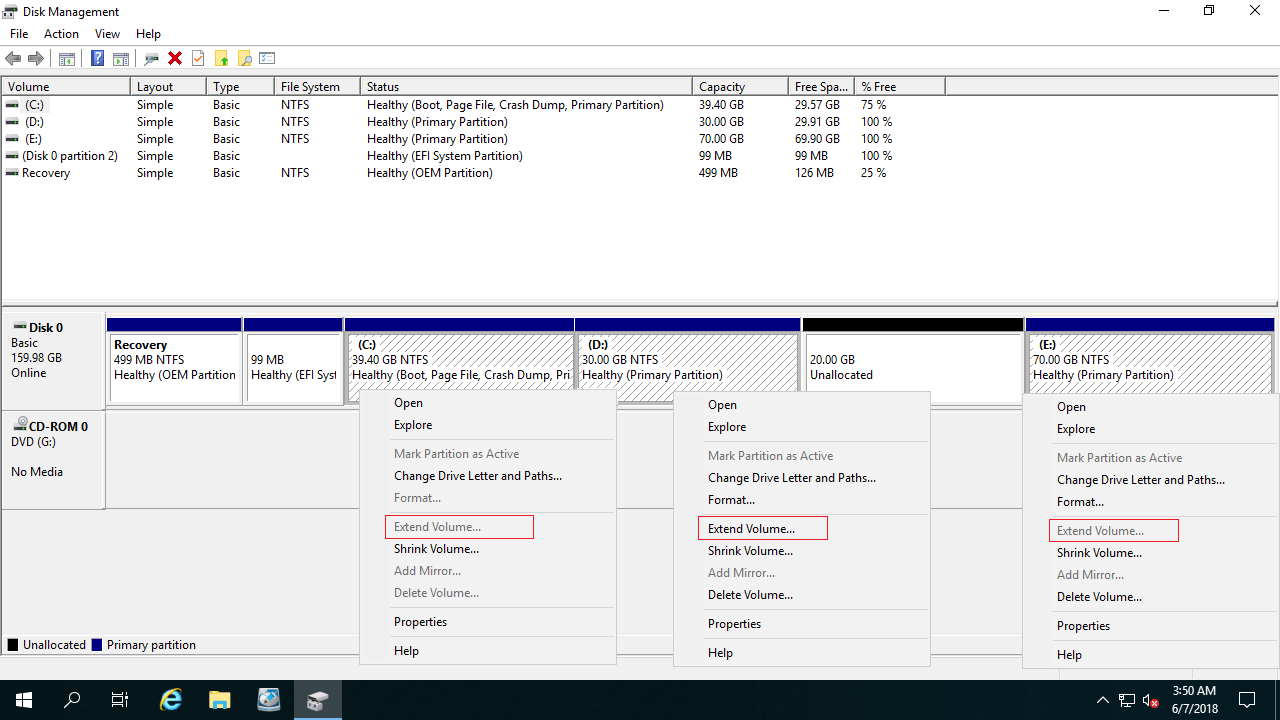
This is because:
Disk Management can only make Unallocated space on the right while shrinking a partition, but the Extend Volume function can only add unallocated space to the contiguous partition on its left.
The unallocated space shrunk from the D drive is nonadjacent to the C drive and is on the left of the E drive. This is the reason why Extend Volume doesn't work.
2. File System Is Not Supported
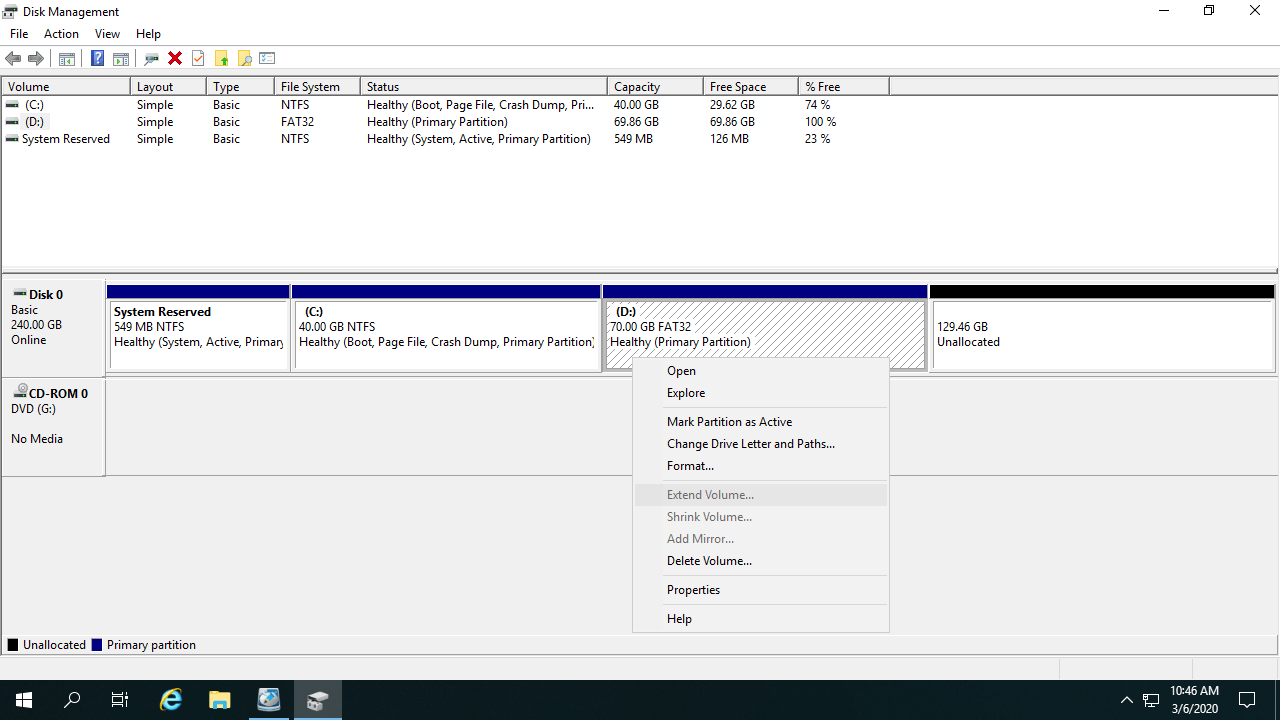
Disk Management can only extend the partitions that are formatted with the NTFS file system or without a file system (RAW). FAT32 and any other types of partitions can't be extended. As shown in the screenshot, volume D cannot be extended, although there's contiguous unallocated space, although there's contiguous unallocated space on the right, because it is a FAT32 partition. This is the second common reason why you can't extend a volume in Server 2019 Disk Management.
3. Different Partition Type
Because Disk Management cannot extend the C drive by shrinking another volume, some people try to delete the adjacent D drive. Does it work?
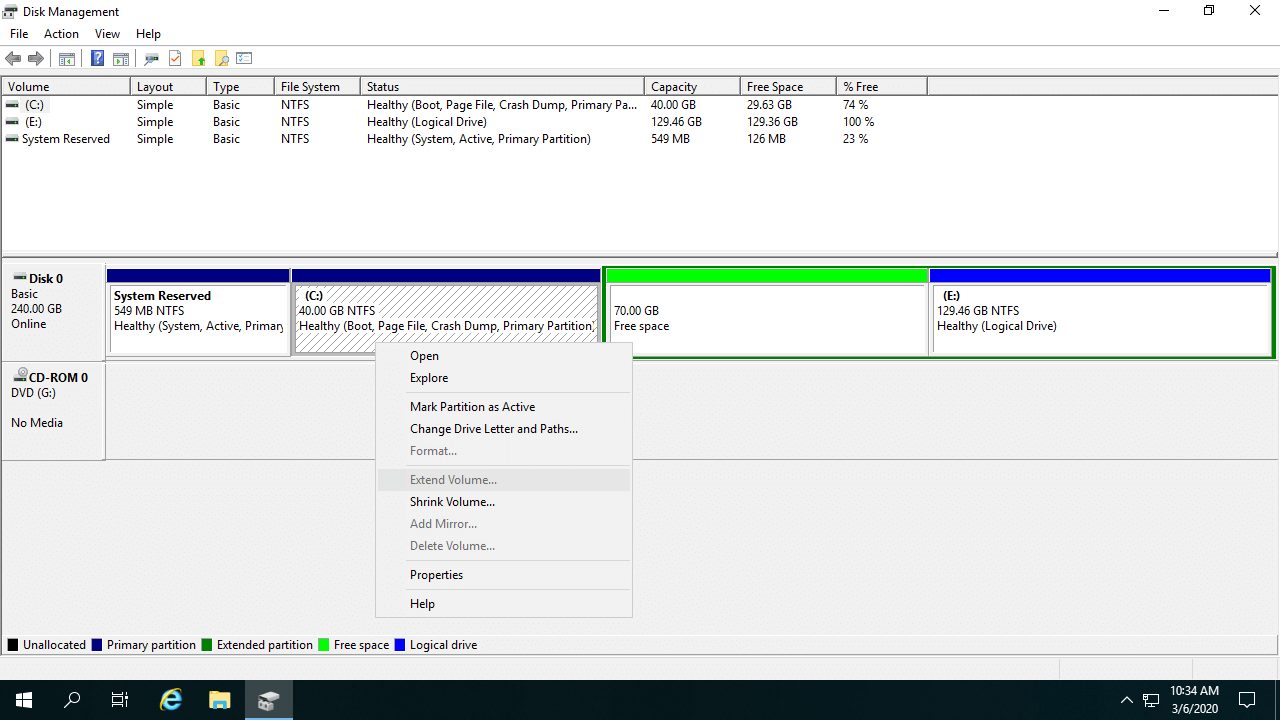
If D is a Primary partition, "Extend Volume" will be enabled for the C drive after deleting D. But as the screenshot shows, if D is a Logical drive, you still cannot extend volume C after deleting D.
On an MBR disk, Unallocated space recovered from a deleted primary partition cannot be extended into a logical drive; similarly, Free space recovered from a deleted logical drive cannot be extended into a primary partition.
4. 2TB Limit on MBR Disk
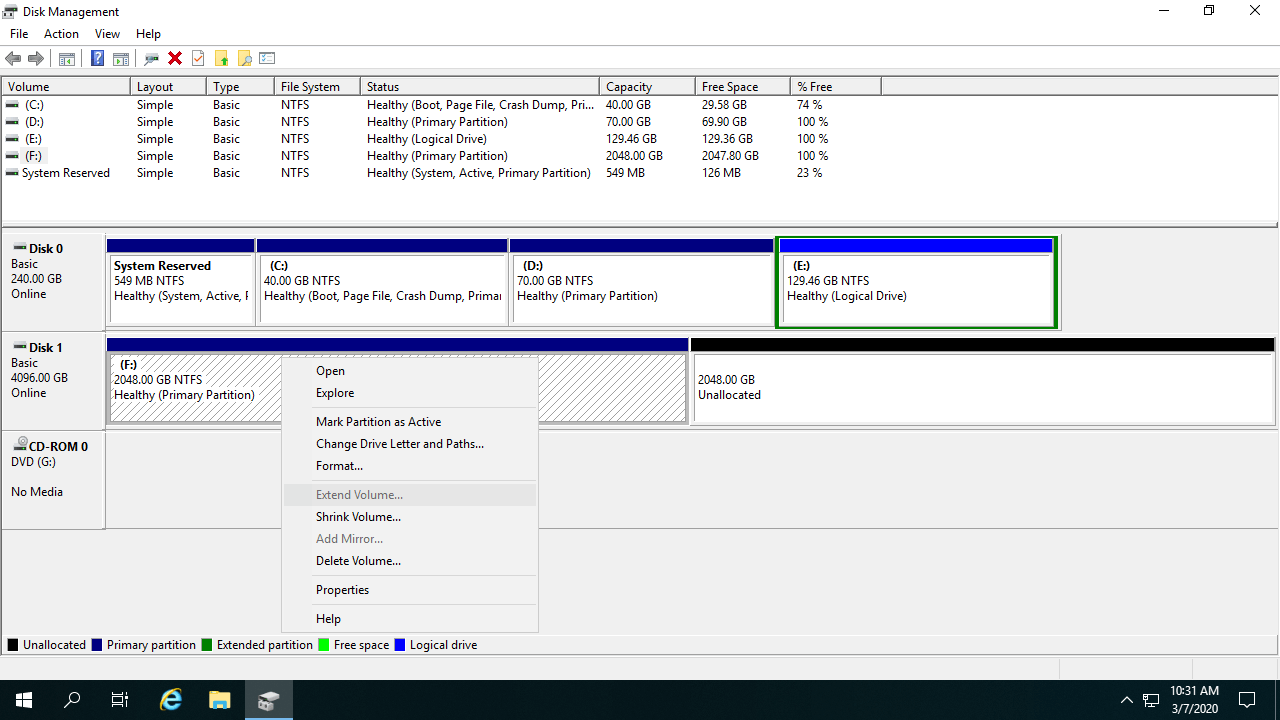
Another limitation to MBR disk is that the maximum disk/partition size is 2TB. Disk Management cannot extend a volume beyond 2TB in Windows Server 2019. If you initialize a 4TB hard disk as MBR, you can only use 2TB of space, and the remaining space will be shown as unallocated. When you right click this space, all options are greyed out.
As shown in the screenshot, drive F cannot be extended although there's contiguous Unallocated space on its right side.
What to Do If Unable to Extend Partition in Windows Server 2019
Open your server Disk Management and find out the reason why it is unable to extend a volume in your own server. Follow the corresponding solution below according to your own disk partition configuration.
1: Move Partition and Unallocated Space
If you already shrunk the D drive and got unallocated space on the right via Disk Management, move partition D to the right, then the unallocated space will be moved to the left at the same time.
If you want to expand another contiguous E: drive, you can combine unallocated space directly without moving the partition. To do this, right click it in NIUBI and select "Resize/Move Volume", drag the left border towards the left in the pop-up window.
Download NIUBI Partition Editor and follow the steps in the video:
2: Shrink and Extend Partition with NIUBI
If you want to extend a FAT32 partition or if the types of partitions to be deleted and extended are different, resize with NIUBI Partition Editor. There's no difference when resizing NTFS and FAT32 partitions, or resizing primary and logical partitions. Follow the steps in the video:
3: Convert MBR Disk to GPT in Advance
If you cannot extend a partition beyond 2TB in Windows Server 2019/2016/2012/2008, follow the steps in the video to convert the MBR disk to GPT and then extend the partition with Unallocated space:
Take Care of System and Data While Resizing Disk Partition
It is not difficult to find out the reason when you cannot extend a volume in Windows Server 2019 Disk Management. But it doesn't mean you can solve this problem safely. There's potential system damage and data loss risk while shrinking and moving partitions, so it is highly recommended to make a backup first and run safe partition software. Better than other tools, NIUBI Partition Editor has advanced technologies to protect your system and data.
- Virtual Mode - all operations will be listed as pending for preview, and real disk partitions won't be modified until you click "Apply" to confirm.
- Cancel-at-will - if you applied wrong operations, you can cancel the ongoing operations at any point before finishing.
- 1 Second Rollback - if any known error is detected while resizing partitions, it automatically reverts the server to its original status instantly.
- Hot-Clone - clone disk partition in Windows without server interruption; you can boot from the cloned disk at any time easily.
- Advanced file-moving algorithm - move and extend partitions 30% to 300% faster.
Besides repartitioning hard drives and converting disk partition types, NIUBI Partition Editor helps you perform many other disk partition management operations.
 © 2009 - NIUBI Technology All Rights Reserved. |